Mastering Linux Basics: Commands Every Beginner Must Know
Introduction
Linux is the backbone of modern technology. From servers and cloud computing to cybersecurity and development, Linux powers a vast portion of the digital world. For beginners, the command line may seem intimidating at first, but with consistent practice and the right approach, it becomes a powerful and efficient tool.
Mastering Linux basics is not about memorizing commands—it is about understanding how systems work and developing a disciplined way of interacting with your computer. In this guide, we will explore essential Linux commands every beginner must know, along with practical examples and real-world usage.
Why Learn Linux Commands?
Before diving into commands, it is important to understand their value:
- Efficiency: Perform tasks faster than graphical interfaces
- Control: Gain deeper access to system operations
- Automation: Execute repetitive tasks easily
- Career Growth: Essential for cybersecurity, DevOps, and cloud computing
Learning Linux is like learning a craft—steady practice leads to mastery.
1. Navigating the File System
Understanding how to move through directories is the foundation of Linux.
Essential Commands
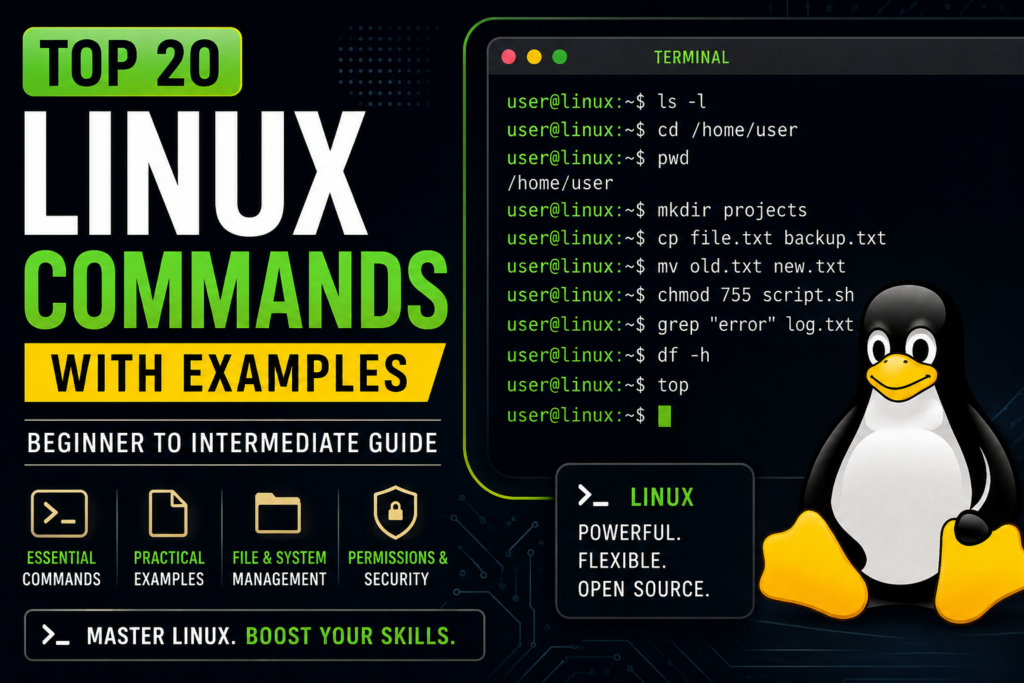
pwd– Print current directoryls– List files and folderscd– Change directory
Examples
pwd
ls
ls -la
cd Documents
cd ..
cd ~
Key Tips
- Use
ls -lato view hidden files cd ..moves one level upcd ~takes you to the home directory
2. Creating and Managing Files
Once you can navigate, the next step is handling files and directories.
Essential Commands
touch– Create filesmkdir– Create directoriesrm– Remove filesrmdir– Remove empty directories
Examples
touch file.txt
mkdir project
rm file.txt
rmdir project
Best Practices
- Be cautious with
rm(it permanently deletes files) - Use clear naming conventions for files and folders
3. Viewing and Editing Files
Linux provides simple tools to read and edit file contents.
Essential Commands
cat– Display file contentsnano– Edit files in terminalless– View large files page by page
Examples
cat file.txt
nano file.txt
less file.txt
Why This Matters
These tools are heavily used in system administration and cybersecurity for reading logs and configuration files.
4. Copying and Moving Files
Managing files efficiently requires copying and relocating them.
Essential Commands
cp– Copy filesmv– Move or rename files
Examples
cp file.txt backup.txt
mv file.txt newfile.txt
mv file.txt /home/user/Documents/
Practical Insight
mvis also used to rename files- Always verify paths before moving files
5. Understanding File Permissions
Permissions control who can read, write, or execute a file.
Key Concepts
- User (u) – Owner
- Group (g)
- Others (o)
Permissions:
r(read),w(write),x(execute)
Essential Commands
chmod– Change permissionschown– Change ownership
Examples
chmod +x script.sh
chmod 755 file.txt
sudo chown user file.txt
Why It’s Important
Permissions are critical in:
- Security
- System stability
- Preventing unauthorized access
6. Searching Inside Files with grep
The grep command is one of the most powerful tools in Linux.
Usage
grep "text" file.txt
grep -i "error" log.txt
grep "login" *.txt
Real-World Use
- Searching logs for errors
- Finding specific data in large files
- Filtering output
7. Finding Files with find
The find command helps locate files quickly.
Examples
find . -name "file.txt"
find . -name "*.txt"
find . -size +1M
Use Cases
- Locating lost files
- Finding large files consuming disk space
- Automating file searches
8. Managing Processes
Linux allows you to monitor and control running programs.
Essential Commands
ps– View processestop– Real-time system monitoringkill– Stop processes
Examples
ps
top
kill 1234
Importance
This is crucial for:
- Troubleshooting
- Performance monitoring
- System management
9. Disk Usage and System Info
Understanding system storage is essential.
Commands
df -h– Disk usagedu -h– Folder size
Examples
df -h
du -h
Practical Use
- Identify storage issues
- Monitor disk usage
10. Working with Archives
Handling compressed files is a common task.
Commands
tar– Archive fileszip/unzip– Compression
Examples
tar -cvf archive.tar folder/
tar -xvf archive.tar

tar -czvf archive.tar.gz folder/
tar -xzvf archive.tar.gz

zip -r archive.zip folder/
unzip archive.zip
Why Learn This?
- Backup data
- Transfer files efficiently
- Work with downloaded packages
11. Command Chaining and Efficiency
Linux allows combining commands for efficiency.
Example
mkdir test && cd test && touch file.txt
Benefit
- Saves time
- Automates workflows
- Improves productivity
12. Using History and Help
Learning how to learn is essential in Linux.
Commands
history– View previous commandsman– Manual pages
Examples
history
man ls
Insight
Experienced users rely heavily on documentation rather than memorization.
FAQs
1. Is Linux difficult for beginners?
No. It may feel unfamiliar at first, but with consistent practice, it becomes intuitive and powerful.
2. How long does it take to learn Linux basics?
With daily practice, you can become comfortable with basic commands in 2–4 weeks.
3. Do I need Linux for cybersecurity?
Yes. Linux is essential for ethical hacking, penetration testing, and system security.
4. What is the best way to practice Linux?
- Use WSL or a virtual machine
- Practice commands daily
- Work on small projects
5. Should I memorize all commands?
No. Focus on understanding. With use, commands become second nature.
Conclusion
Mastering Linux basics is a journey of discipline, patience, and consistent effort. These commands are not just tools—they are the building blocks of deeper technical skills in cybersecurity, development, and system administration.
Start small. Practice daily. Repeat commands until they feel natural.
Over time, what once seemed complex will become simple, and what felt difficult will become effortless.
Linux rewards those who stay consistent. Keep going, and mastery will follow.
Refer: Top 20 Linux Commands