Top 20 Linux Commands:
Linux is one of the most powerful operating systems used by developers, system administrators, and cybersecurity professionals. If you have already learned the basics, the next step is to master commonly used Linux commands with real-world examples. These commands will help you navigate the system, manage files, and improve productivity.
In this guide, you will learn the top 20 Linux commands every beginner to intermediate user must know, along with simple explanations and practical examples.
1. pwd (Print Working Directory)
- Shows your current directory location.
Example:
$ pwd
Output:
/home/user
2. ls (List Directory Contents)
- Displays files and folders in a directory.
Examples:
$ ls
$ ls -l
$ ls -a
3. cd (Change Directory)
- Used to navigate between directories.
Examples:
$ cd Documents
$ cd ..
$ cd /home/user
4. mkdir (Make Directory)
- Creates a new directory.
Example:
$ mkdir project
5. rmdir (Remove Directory)
- Deletes an empty directory.
Example:
$ rmdir project
6. touch (Create File)
- Creates a new empty file.
Example:
$ touch file.txt
7. rm (Remove Files)
- Deletes files or directories.
Examples:
$ rm file.txt
$ rm -r folder
8. cp (Copy Files)
- Copies files or directories.
Examples:
$ cp file.txt backup.txt
$ cp -r folder1 folder2
9. mv (Move/Rename Files)
- Moves or renames files.
Examples:
$ mv file.txt newfile.txt
$ mv file.txt /home/user/Documents
10. cat (Display File Content)
- Displays content of a file.
Example:
$ cat file.txt
11. less (View File Page by Page)
- Used to view large files.
Example:
$ less file.txt
12. head (View First Lines)
- Displays first 10 lines of a file.
Example:
$ head file.txt
13. tail (View Last Lines)
- Displays last 10 lines of a file.
Example:
$ tail file.txt
$ tail -f logfile.log
14. echo (Print Text)
- Displays text or variables.
Example:
$ echo “Hello Linux”
15. grep (Search Text)
- Searches for patterns in files.
Example:
$ grep “error” logfile.log
16. find (Search Files)
- Finds files and directories.
Example:
$ find /home -name file.txt
17. chmod (Change Permissions)
- Changes file permissions.
Example:
$ chmod 755 script.sh
18. chown (Change Ownership)
- Changes file owner.
Example:
$ chown user file.txt
19. df (Disk Space Usage)
- Shows disk usage.
Example:
$ df -h
20. top (System Monitoring)
- Displays running processes.
Example:
$ top
Tips for Beginners
- Practice commands daily in the terminal
- Use “man command” to learn more (e.g., man ls)
- Combine commands for powerful usage
- Avoid using rm -rf without understanding
Frequently Asked Questions (FAQs)
1. What is the most important Linux command?
The “ls” and “cd” commands are the most commonly used for navigation.
2. How can I learn Linux commands faster?
Practice daily, use real projects, and explore commands using the “man” command.
3. What is the difference between cp and mv?
cp copies files, while mv moves or renames them.
4. Is Linux difficult for beginners?
No, Linux becomes easy with consistent practice and understanding of basic commands.
Conclusion
Mastering Linux commands is an essential step in becoming a skilled developer or cybersecurity professional. These top 20 commands form the foundation of daily tasks in Linux environments. By practicing them regularly and understanding their real-world applications, you will gain confidence and efficiency in using the Linux terminal.
Continue learning and explore advanced topics like shell scripting and system administration to take your skills to the next level.
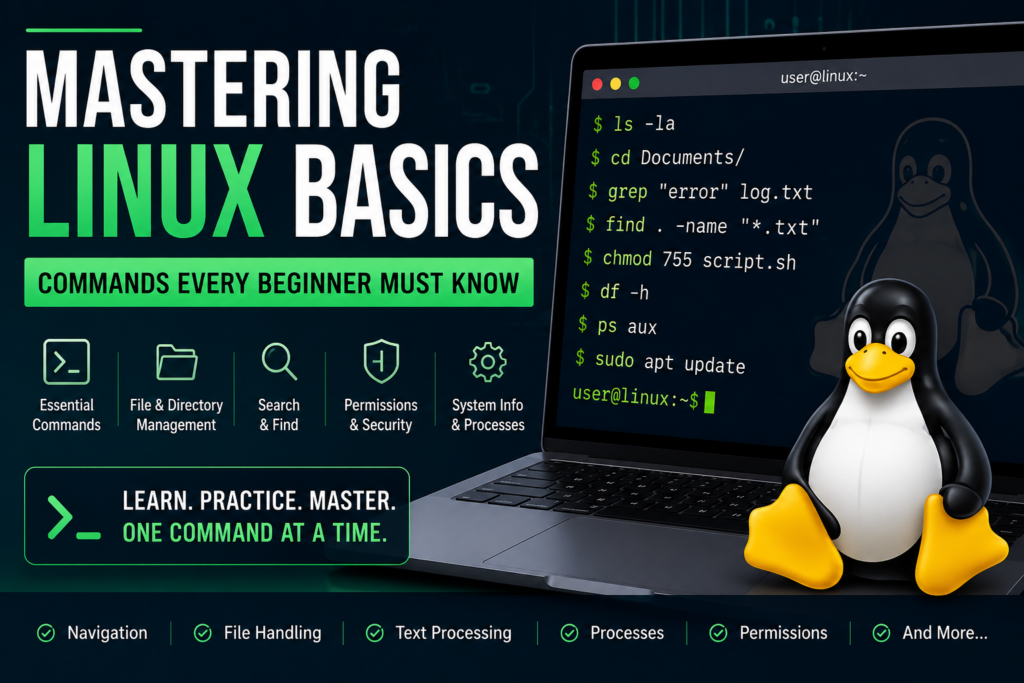
Read on : Mastering Linux Basics