Linux File Management Commands Explained (cp, mv, rm, mkdir)
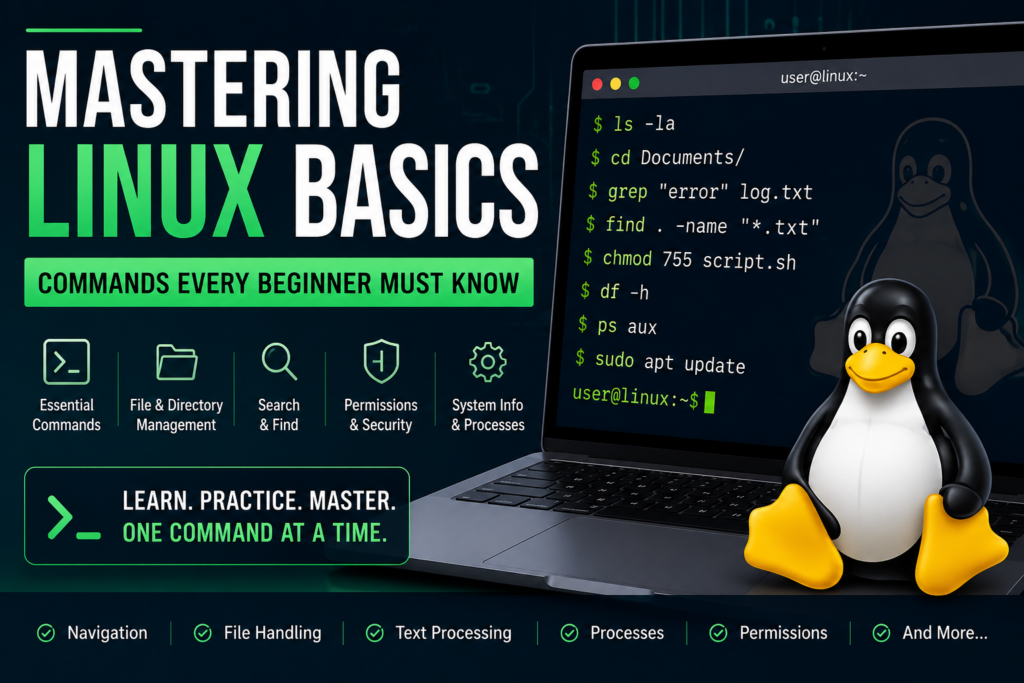
Linux is a powerful operating system widely used by developers, system administrators, and cybersecurity professionals. One of its core strengths lies in efficient file management through command-line tools. Mastering basic Linux file management commands is essential for navigating the system, organizing data, and performing tasks quickly.
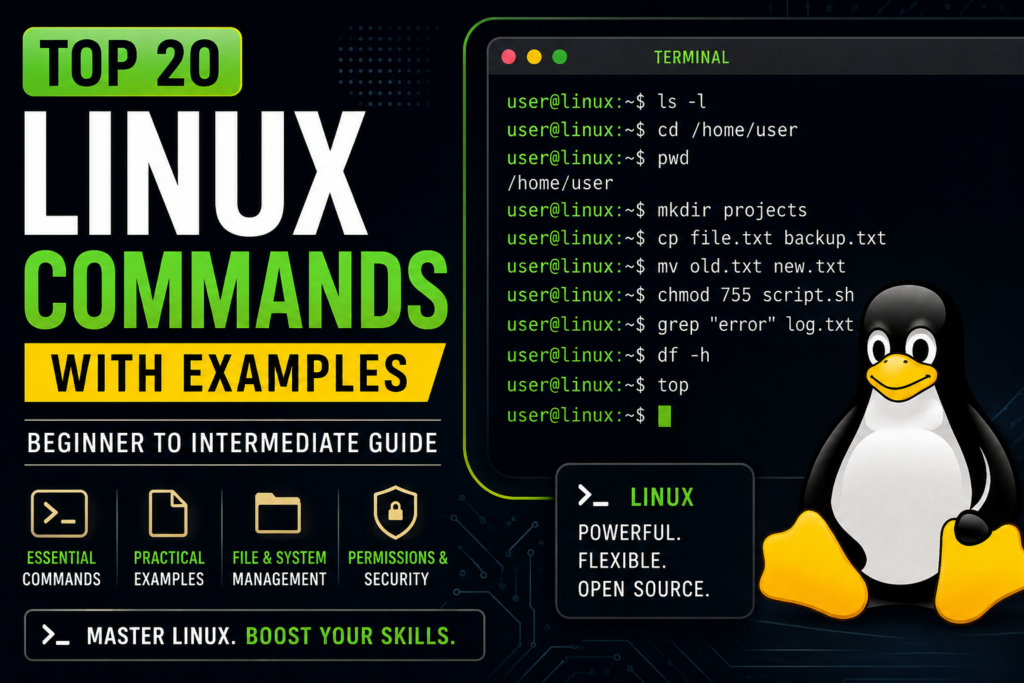
In this article, we will explore four fundamental Linux file management commands: cp (copy), mv (move), rm (remove), and mkdir (make directory). These commands form the foundation of daily operations in Linux environments.
Why File Management Commands Matter in Linux
Unlike graphical interfaces, Linux emphasizes command-line usage for speed, flexibility, and automation. Learning file management commands helps you:
- Work faster than GUI-based methods
- Automate repetitive tasks using scripts
- Manage large datasets efficiently
- Gain deeper control over your system
Whether you are a beginner or advancing in cybersecurity or system administration, these commands are essential tools.
1. cp Command (Copy Files and Directories)
The cp command is used to copy files and directories from one location to another.
Basic Syntax
cp [options] source destination
Common Examples
Copy a file:
cp file1.txt file2.txt
Copy file to another directory:
cp file1.txt /home/user/Documents/
Copy multiple files:
cp file1.txt file2.txt /home/user/Documents/
- Copy directories (recursive):
cp -r folder1 folder2
Useful Options
-r→ Copy directories recursively-i→ Prompt before overwrite-v→ Show detailed output-u→ Copy only if source is newer
Example in Real Use
cp -iv report.txt /backup/
This command copies report.txt to the backup folder and asks for confirmation before overwriting.
2. mv Command (Move or Rename Files)
The mv command is used to move files or directories from one location to another. It is also used to rename files.
Basic Syntax
mv [options] source destination
Common Examples
- Move file to another directory:
mv file1.txt /home/user/Documents/
- Rename a file:
mv oldname.txt newname.txt
- Move multiple files:
mv file1.txt file2.txt /home/user/Documents/
Useful Options
-i→ Ask before overwrite-v→ Show operation details-n→ Do not overwrite existing files
Example in Real Use
mv -iv data.csv /archive/
This moves the file to the archive folder with confirmation and verbose output.
3. rm Command (Remove Files and Directories)
The rm command is used to delete files and directories permanently. It must be used carefully, as deleted files cannot be easily recovered.
Basic Syntax
rm [options] file
Common Examples
- Delete a file:
rm file1.txt
- Delete multiple files:
rm file1.txt file2.txt
- Delete a directory:
rm -r folder1
Useful Options
-r→ Remove directories recursively-f→ Force deletion without prompt-i→ Ask before deleting-v→ Show details
Dangerous Command Warning ⚠️
rm -rf /
This command can delete the entire system. Never run it unless you fully understand the consequences.
Example in Real Use
rm -iv old_data.txt
This safely deletes a file with confirmation.
4. mkdir Command (Create Directories)
The mkdir command is used to create new directories (folders).
Basic Syntax
mkdir [options] directory_name
Common Examples
- Create a directory:
mkdir project
- Create multiple directories:
mkdir dir1 dir2 dir3
- Create nested directories:
mkdir -p project/src/components
Useful Options
-p→ Create parent directories if not exist-v→ Show creation details
Example in Real Use
mkdir -pv /home/user/projects/newapp
This creates the full directory structure and shows output.
Combining Commands for Real Workflow
In real-life scenarios, these commands are often used together:
mkdir project
cd project
cp /home/user/file.txt .
mv file.txt renamed.txt
rm renamed.txt
This sequence:
- Creates a project directory
- Navigates into it
- Copies a file
- Renames it
- Deletes it
Best Practices for Using Linux File Commands
To work safely and efficiently, follow these practices:
- Always double-check paths before using
rm - Use
-ioption for safety in important operations - Use
-vto understand what commands are doing - Avoid running commands as root unless necessary
- Test commands on sample files before real use
Common Mistakes to Avoid
- Forgetting
-rwhile deleting directories - Overwriting files accidentally with
cpormv - Using
rm -fwithout understanding consequences - Creating wrong directory paths without
-p
Being mindful helps prevent data loss and system issues.
FAQs on Linux File Management Commands
1. What is the difference between cp and mv?
cpcreates a copy of a filemvmoves or renames the file without duplication
2. Can rm recover deleted files?
No, files deleted using rm are permanently removed. Use backup tools if recovery is needed.
3. How do I copy hidden files?
Use:
cp -r .* destination/
Or include -a for archive mode:
cp -a source/ destination/
4. What does mkdir -p do?
It creates parent directories automatically if they do not exist.
5. How can I avoid accidental deletion?
Use:
rm -i filename
This asks for confirmation before deleting.
Conclusion
Mastering Linux file management commands like cp, mv, rm, and mkdir is a crucial step toward becoming efficient in the Linux environment. These commands allow you to manage files and directories quickly, automate tasks, and maintain better control over your system.
Start practicing these commands daily in a safe environment. Over time, they will become second nature, empowering you to work faster and more confidently—whether in development, cybersecurity, or system administration.
Consistency in practice is the key. Even simple commands, when used wisely, build strong foundations for advanced skills.
Also read on : Ethical Hacking | Common Linux Commands | Linux Basics | Linux Permissions